Contact

- charles.p.comerford@uia.no
- Phone
- +47 38 14 26 08
If you need help making compendiums, please contact us. We can set up courses when needed. If you require us to do so, we can hold courses at department level. It is the responsibility of the department to request courses and books rooms.
In BOLK you can collect book excerpts and produce digital compendiums (PDF files), which can be made available digitally and free of charge to students via Canvas or Fronter. All copies of book chapters that must be made available to students, but which are not subscribed to by UiA, MUST be registered, and cleared in BOLK.
You can use up to 15 % of each book in your compendium. If you need to use more, you must request clearance of rights through BOLK. BOLK counts how much of the book you use and notifies you when you exceed 15 %.
Copying of scientific articles available through the institution’s licensed subscriptions must comply with the terms of the relevant publisher agreement. Additionally, under the Kopinor agreement, one article per person per semester may also be copied from a single issue of a scientific journal.
You may copy articles from periodicals like newspapers and magazines without limitations. The same goes for publications that are free of charge.
Access BOLK
If you require access to BOLK, please send an email to Charles Comerford with the following information:
- Full Name
- UiA email address
- Phone number
- Feide ID (your username)
- Department – Faculty you will be teaching in / creating compendium
We will create an account as soon as possible. Please request guidance if needed.
Create and order compendium
When you log in to BOLK, you will see the option "Create compendium" to the right of the search field.
Film: Demonstration of steps 1–3 as summarized below
Step 1: Fill in information about the compendium in the form
- Unit = Department (usually stated in advance)
- Title = Title of compendium. What should be on the front page.
- Course code = Start typing the course code and select from the menu. The list of subject codes is provided by FS
- Subject = is filled in automatically when you select the subject code
- Course leader = you
- Number of students = approx. Number
- Holidays
- Semester start and end - check in academic calendar
- Semester end - check in UiA's calendar
- Desired delivery date (must not be filled in) = date you want to receive a compendium from BOLK.
- Click "Next".
Step 2: Select content for your compendium
- In the search box, enter the title of the book (not the article or chapter in the book but the title of the book) and click «SEARCH». Tip: mix the title of the book with the author's last name to get less hits. The most effective search method is to use the book's ISBN.Click on the title to select a book. Tip: Use "load in bookshelf" to easily find your way back to the book when assembling the compendium.
- Enter page numbers from the book you want to use (up to 15% of the book's number of pages).
- Invalid page number? Check if you or a colleague have used the same pages in the same subject code. Otherwise contact contact@kopinor.no and ask for help. Provide information about the book (title, author, and ISBN).
- Change "Name of excerpt" to what should be in the compendium's table of contents. Information about the book from which the extract has been obtained automatically appears before each extract in the compendium you receive from BOLK - Title of the book, author's last name, publisher, ISBN and year.
- Click "Add Compendium".
- Change the order of the excerpts: Drag the excerpt to the desired location in the list by dragging the dots to the left of the title:
- How to change the order of files in BOLK. Picture.
- When you have entered all the compendiums you want, click "next".
BOLK saves your work automatically, so there is no save button. You do not have to complete the entire compendium at once and you can come back to work on it later.
Cannot find the book you are looking for? Click "Order a manual literature search” and fill in the form. Within three days you will be notified by email that the book can now be used in the compendium. Often you also must order the collection of a content file.
Step 3: Review and order
Here you may be notified that you are missing a content file or rights clearance. See separate user guides below for this.
- Double check for typos and that you have received the extracts you want.
- Check "I have read the purchase information" and click "Order".
- Click OK on the next page.
The file with compendium should be available within an hour – contact contact@kopinor.no if several hours pass without you receiving it.
Rights clearance
If you have added more than 15 % of the pages of a book to the compendium, you will automatically be notified that the pages must be copyrighted. Before ordering rights clearance, you must complete the compendium. Click "next". Select "Order declaration of rights" and OK.
The clearance can take up to 14 days. Tip: If it is urgent, you can divide the compendium in two, one of which only contains the files that need to be trusted.
Rejected or approved?
You will receive an email when the clearance has been approved or rejected. Click on the link in the email, log in to BOLK and read the instructions before you continue working on the compendium.
If the trust is denied, you can do the following:
- Request the students buy the book themselves
- You can adjust the excerpt so that it makes up a maximum of 15 % of the book
If the book is a little older, you can try to find it online and provide a link to the students at Canvas (many Norwegian books have been digitized by the National Library and are freely available on bokhylla.no.)
Collect content file
BOLK's database contains over 6 million references but not all files are available. There are two types of references: with file and without file. Below is information on how to tell the difference between the two types when searching for a book:
How to see if the reference has a content file in BOLK.
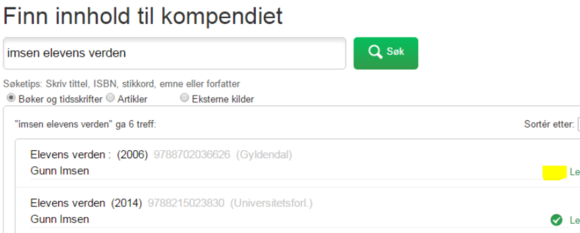
The green symbol means that the file is available. When the file is not available, you have two options: Obtain a content file or upload your own material.
How to order content file retrieval
Click on the book's title, add page numbers, and rename the text. Check the "Order content file retrieval" option and add a compendium. Before ordering the content file, you must complete the compendium. Then click "next". Select "Order content file retrieval" and OK.
This can take up to 30 days. Tip: If it is urgent, you can divide the compendium in two where one only contains the extracts that are missing a file.
Rejected or approved?
You will receive an email when the retrieval of the content file has been approved or rejected. Click on the link in the email, log in to BOLK and read the instructions before you continue working on the compendium.
If Kopinor does not receive the content file, you will receive an email about this, and you may be asked to upload the file yourself. You will also receive instructions on how to do this. Contact contact@kontakt.no if you have any problems.
If BOLK / Kopinor uploads files on your behalf, you will be notified of "refusal to retrieve content file". This is correct. You have sent the file to Kopinor / BOLK so ordering to obtain the file is no longer relevant.
PDFs in the compendium
Follow the usual procedure for adding book excerpts to compendiums, but before you press "add compendium", select "upload your own material". You will see a window with information. Select "add" for the upload form.
To find the file on your computer select "browse". Once you have found the file you want to use, you must choose whether you want the following:
- Should the book extract be shown in the table of contents for others who apply in BOLK?
- Should other compendium customers be able to see the excerpt?
- Should you be able to reuse the file the next time you want the same compendium?
We recommend that you tick all three choices - at least the last one.
Press "add compendium".
Reuse a compendium
It is possible to reuse the compendium made by yourself or a colleague in the previous semester.
NB! You cannot upload the same PDF file. You do not have to add all the book extracts again. The course code and number of students must be re-registered in BOLK every semester.
Here is how to do it
- Log in to BOLK and click on the BOLK logo on the left. Then you get the search tab. Enter your name, subject code, or subject, tick the option «Compendiums» and click «SEARCH».
- From the hit list, select the compendium you want to use again by clicking on the title of the compendium. Then you get the content of the compendium. Select "Create new compendium based on this".
- Enter information about the new compendium and the topic it is to be used in. Check the table of contents and make any changes before moving on to complete the order.
Compendium status
To check the status of your compendium, you must log in and go to "My compendiums". In the middle of the page you will see "Compendiums in progress" with a status column.
Explanation of the symbols
- Green symbol means that the compendium is ready to order, and you can click on the "Finish" link on the right.
- Orange symbol means that you are missing a content file or rights clearance on the excerpt.
- The red symbol means that you have been refused either content file retrieval or rights clearance. Hold the mouse over a symbol to see the reason for the rejection.
For more information on the compendium, click on the compendium's title or pencil icon.
The compendium file
How to download the compendium
- Log in to BOLK and go to «My compendiums».
- The "Inbox" must state that the compendium file has been produced – click on the message.
- Click on the green pdf link and download the PDF.
Printed compendiums
Compendiums should be electronic, but there are many students who need to get texts on paper. They can print compendiums directly from the Front Room. It costs about 0.4 NOK / single page. Stapling and binding can be done using the IT help desk.
Employees who want a printed compendium must print the compendium themselves and bind it. UiA does not use BOLK's services for printed compendiums.
Change the finished compendium
You can change the layout of the compendium, but not the content after it is finished. To change information, you must use Adobe Pro.
Poor quality of the compendium?
Send email to contact@kopinor.no or call 23 10 74 74.