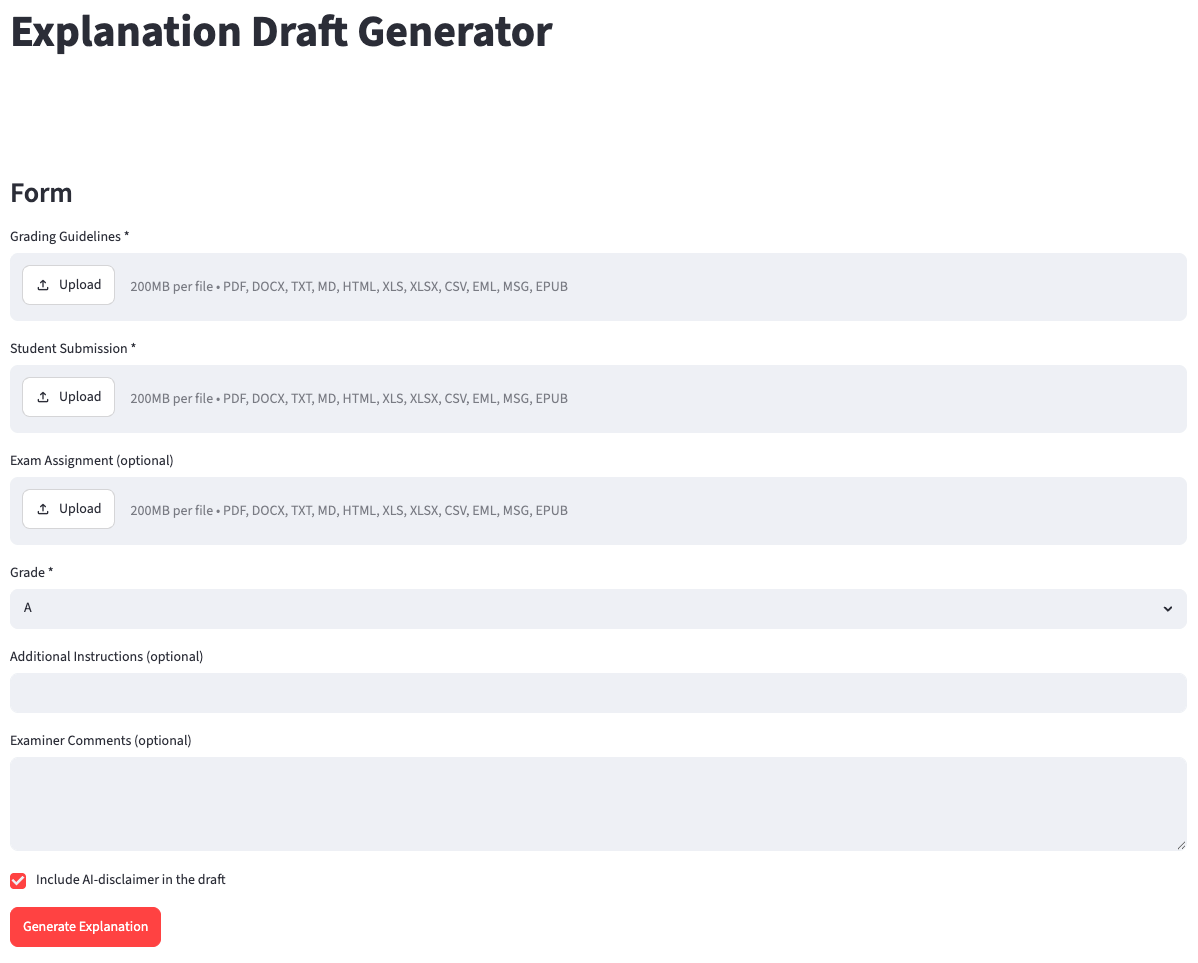
- The tool is designed to generate draft explanations for exam grades at UiA. Only UiA staff have access to it, and the tool can only be used on exam papers from UiA; in other words, you cannot use the tool as an external examiner.
- If you choose to use the tool, candidates must be informed that the explanations are based on AI-generated drafts.
- As an examiner, you are responsible for editing and quality-assuring the draft before sending it to the candidate.
- This tool has been developed with written school examinations in mind. The tool is compatible with all other forms of examination, but please note that the quality may vary in these cases.
Uploading files
To use the tool, you must upload the following:
- Grading guide
- Student answers
- Grades awarded
As you can see in the image above, these are marked with * and you upload the documents by clicking on ‘Upload’.
If the exam has an assignment text, upload it in the ‘Exam Assignment (optional)’ field.
All parts can be easily downloaded from Inspera.
If you download all student answers in the committee, you must select ‘Download answers as separate files’. This is important because the tool allows you to upload one student answer at a time.
Grade and other instructions
You can select the grade from the drop-down menu.
In the two boxes at the bottom, you can enter any additional instructions and/or your own comments/notes from the assessment.
Examples of additional instructions may include:
- Different weighting of sub-tasks
- Place particular emphasis on tasks 2 and 3 and only give the score for task 1 (multiple-choice task).
- Adjust the length of the draft
- The explanation should not be longer than 4 sentences.
- Provide specific feedback
- Focus particularly on the linguistic formulation and clarity of the language.
Generation of the draft
When you are ready to generate the draft, press the ‘Generate Explanation’ button and the draft will be generated on the right-hand side.
At the bottom of the draft, you will find a button to copy the text.
It is possible to add more/new instructions and generate a new draft if you are not satisfied with the draft.
To proceed to the next candidate
To move on to the next candidate, you can easily remove the student's answer by clicking on the delete-icon next to the uploaded file before uploading the next student's answer. Remember to enter the correct grade and adjust any instructions and/or comments.
About access to the tool
Important:
For the link to work, you must be connected to UiA's internal network.
This means that you must either:
- be physically on campus and connected to eduroam, or
- use eduVPN if you are outside the campus.
If you are not on eduroam or have not activated eduVPN, the link will not open. Therefore, please ensure that you are connected to the correct network before attempting to use the tool.
You must authenticate yourself by logging in with your Feide account.
If you have any questions about functionality, please contact:

- maj.s.nielsen@uia.no
- Phone
- +47 92 03 80 31
If you are experiencing technical difficulties accessing the site or have any technical feedback, please contact:

- karl.audun.borgersen@uia.no
- Phone
- +47 95 14 67 93
This page is updated regularly as new versions of the solution are released.