Dyslexia-friendly font
It is possible to turn on dyslexia‑friendly font in Canvas. When this feature is enabled, all text in Canvas will use the Open Dyslexic font.
Files uploaded to Canvas by instructors are not affected.
How to enable the feature
- Click on “Account” in the main menu in Canvas

Turn on “Use a Dyslexia Friendly Font”
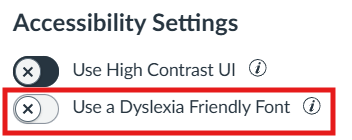
- Refresh the page for the change to take effect
High Contrast Interface
It is possible to increase the contrast of the user interface (UI) in Canvas. High contrast improves the color contrast of text, buttons, and other elements. All links are also more clearly marked.
How do I enable the high contrast user interface?
1. Click on “Account” in the main menu in Canvas.
2. Check the box for “Use High Contrast UI.”
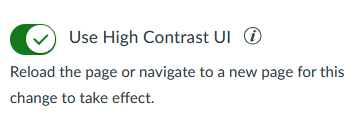
3. Refresh the page for the changes to take effect.
Alternative Formats of Files and Pages
We all have different reading preferences and needs. The “Alternative Formats” tool allows you to convert files and pages to other formats, making the content easier or more accessible for you to go through. Below, you will find an overview of how to access the tool, the formats you can choose from, and a brief description of how each format can be useful.
How do I access the tool?
When you open a file or page in Canvas, you will see the “Alternative Formats” button to the right of the title. The «Alternative formats» button is marked in the image below.

Which formats can I choose from?
You can choose from several different formats:
Tagged PDF: Content such as headings, lists, tables, and similar elements are marked with structure tags. This improves accessibility and is especially beneficial for people using screen readers or other assistive technology to interpret and navigate content.
HTML: Simplified viewing in browsers and on mobile devices.
ePub: For use as an e-book on iPad and other e-readers.
Electronic Braille: BRF-file (Braille Ready Format) for use on electronic braille displays. This format can also support Braille-to-speech functionality.
Audio: MP3 version for listening. Good for everyone, but especially useful for people with dyslexia or reduced vision.
BeeLine Reader: This can make it easier and faster for you to read on the screen.
Immersive Reader: Works like “Immersive Reader” in Canvas (see next). This format requires internet access to use.
Translated Version: The content is machine-translated into another language. The result is not always perfect, but the tool is especially useful if the content is not in your native language.
It may take time to convert a file to another format, especially if the file is large. Some formats are also more time-consuming to convert than others, such as “Immersive Reader.”
The higher the quality of the original file in terms of universal design, the better result you will get in the alternative format. Please contact the course responsible if you experience that the learning material is not accessible to you, even with the use of alternative formats.
Immersive Reader
The “Immersive Reader” tool can help you with many things, such as Text-to-speech, adjusting how the text is displayed, and translating content on the page. This tool can be particularly useful for individuals with dyslexia, reduced vision, or for individuals learning a new language.
You can find “Immersive Reader” at the top right of the course homepage, in assignments, and on other content pages created in Canvas.
When you click the “Immersive Reader” button, the text on the page will open in a new view. In this new view, you have many options and uses:
Text to Speech
Press the green “Play” button to have the text converted to speech. Press the “Voice settings” button, which is to the right of “Play”, to change the reading speed and voice selection.

Adjusting how the text is displayed
In the top right corner, you will find three buttons: (1) “Text preferences,” (2) “Grammar options,” and (3) “Reading preferences,” as shown in the image below.

In “Text preferences,” you can adjust the text size, increase the spacing between letters, change the font, and adjust the contrast between text and background.
In “Grammar options,” you can turn on color-coding for different parts of speech, such as verbs and adjectives. You can also enable syllable breakdown. Example of syllable display: student → stu-dent.
In “Reading preferences,” you can enable line focus, picture dictionary, or content translation.
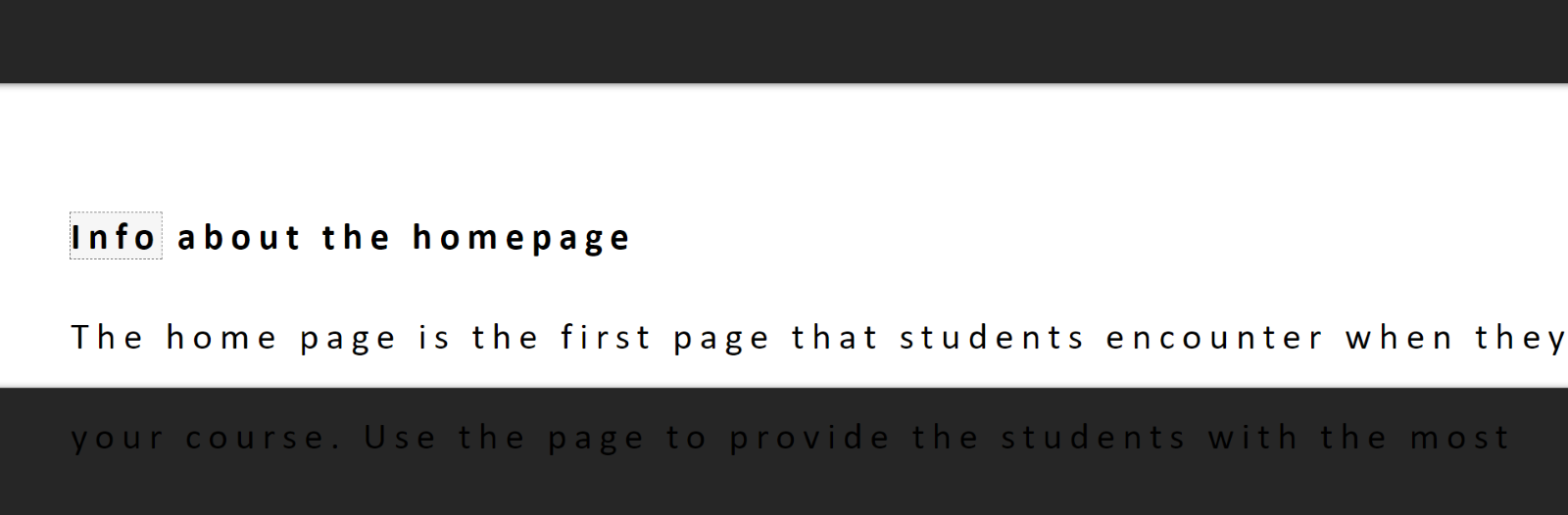
Line focus
Line focus allows you to determine how much of the screen and text you can see at a time while reading. This can be especially useful for individuals with dyslexia or similar disabilities.
Picture Dictionary
When Picture Dictionary is enabled, you can click on words in the text to see a picture that shows what the word can mean. This functionality can be especially useful for individuals learning a new language. However, not all words have associated pictures, so the functionality is somewhat limited. 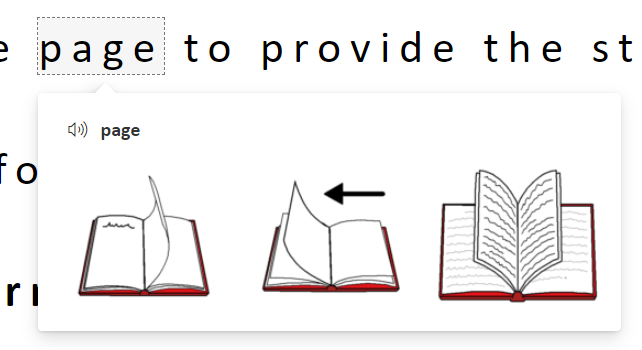
Translate
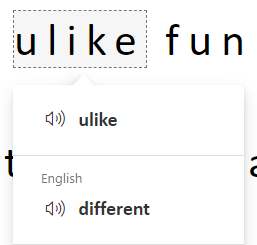
The translation function can be used in two ways: to automatically translate the entire page to your chosen language or to let you see translations for specific words. If you choose “By word,” you can click on a word to see what that specific word means in your chosen language. The translation function can also be combined with Text-to-speech, either by clicking on individual words or by playing the entire page.
Do you need additional accommodations for your studies?
Here you will find information and resources concerning accommodations at UiA