How to validate links in a Canvas course
As an instructor, you can verify links to course content throughout your course to ensure they are valid. You can check these links using the course link validator, which searches through course content and returns invalid or unresponsive course content links in both published and unpublished content.
Important to know:
- Some links flagged as unresponsive are inaccessible by Canvas servers and will still work for students
- The link validator also includes deleted links (links that are still in the course, but their linked content has been deleted)
- The link validator does not validate mailto (email address) links
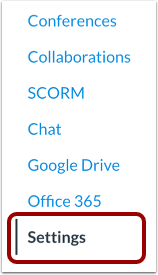
1. Open Settings
In Course Navigation, click the Settings link.
2. Open Validation Link
In the sidebar to the right, click the Validate Links in Content link.

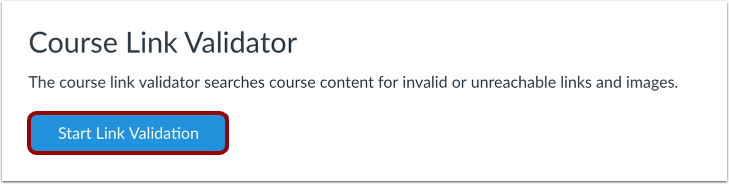
3. Start Link Validation
Click the Start Link Validation button.
4. View Results
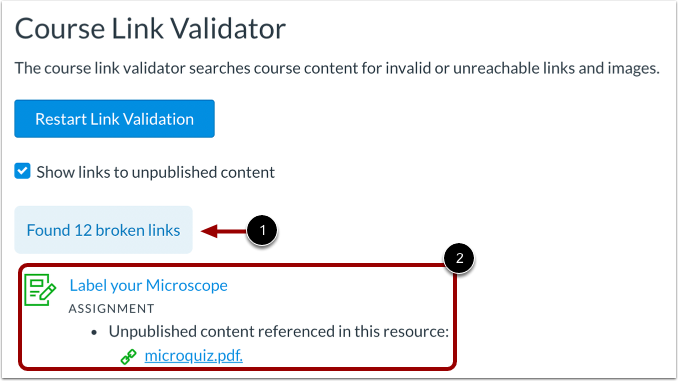
If any links are found in the course, Canvas displays the number of links, followed by the name of the content item and the content's associated invalid link(s).
5. View Unpublished Content
By default, the "Show links to unpublished content" checkbox is selected. The page will display any broken links in unpublished content.
6. Understand the Details
The validator displays broken links and images by item type:
- Broken content is identified as either a link or an image
- Non-existent content means that the object is invalid and should be replaced
- Unreachable objects mean the image could not be displayed

7. Update Links
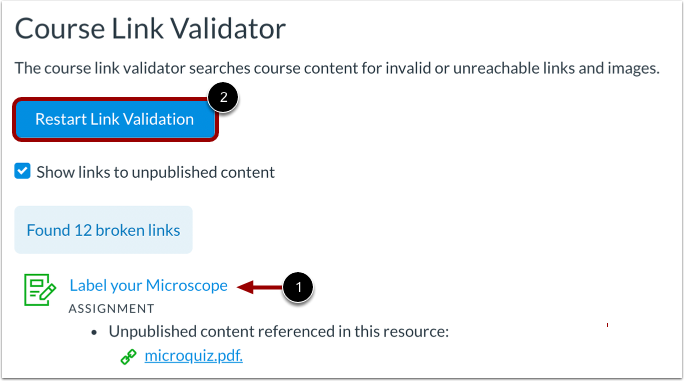
To update links within course content, click the name of the content item.
Tip: After you update your content, you can validate your links again by returning to the Link Validator page and clicking the Restart Link Validation button.
Universal design and accessibility in Canvas
Quality assurance of course content is not just about making links work - it's also about ensuring that all students can participate in learning on equal terms. Universal design ensures that your content is accessible to students with different needs and prerequisites.
Canvas has a built-in tool called Ally that helps you:
- Identify accessibility issues in documents, images, and other content
- Get concrete suggestions for improvements
- Automatically generate alternative formats (such as audio files and simplified versions)
By using Ally, you can easily make your content more accessible to students with visual impairments, dyslexia, or other needs that require special accommodations.
Resources: