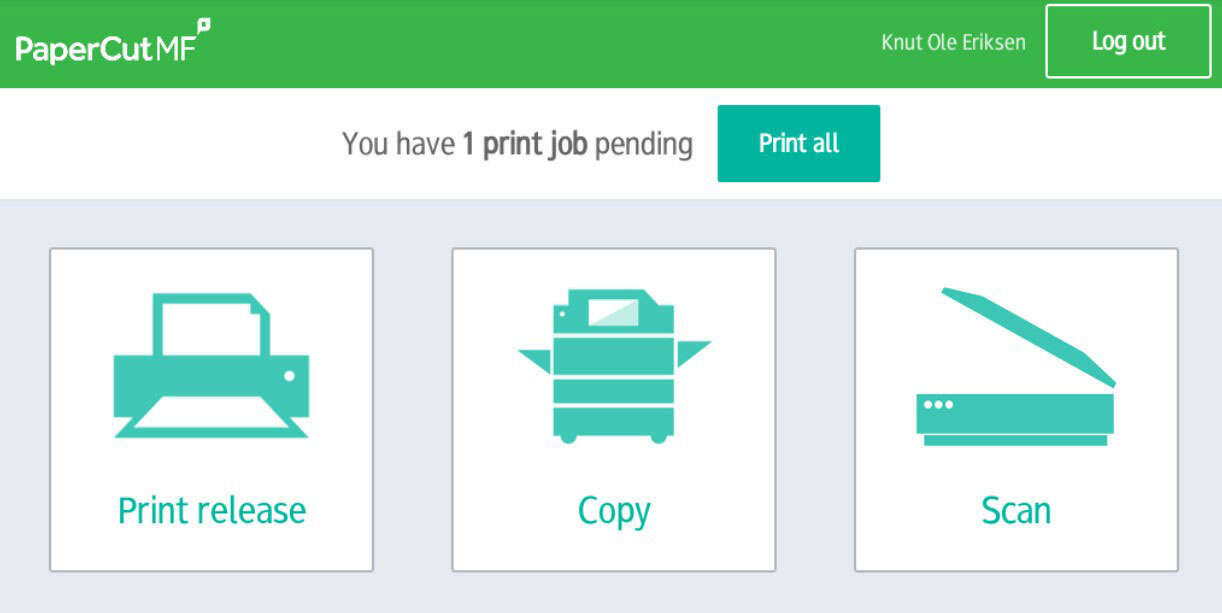
1. Log in with your card or username and password, select 'Scan'. Place the document in the scanner.
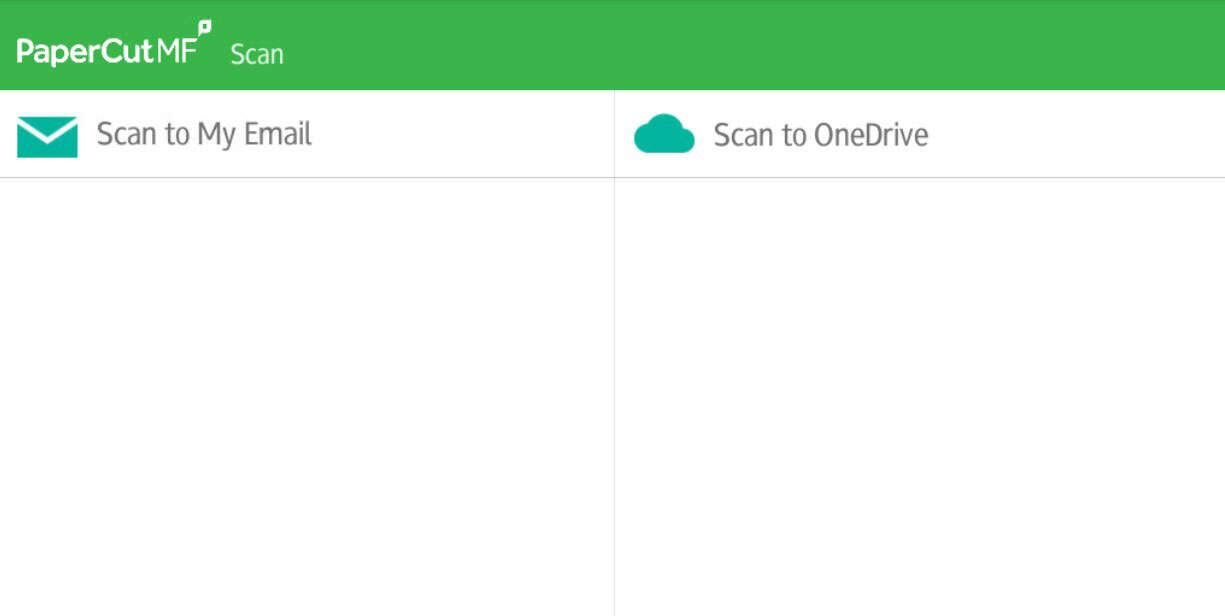
2. Select whether you want to scan to email or OneDrive
We recommend that you use OneDrive. This is a more secure option, and you do not need to worry about the size of the document.
3. Under 'Change settings', you can choose how you want the scan to be:
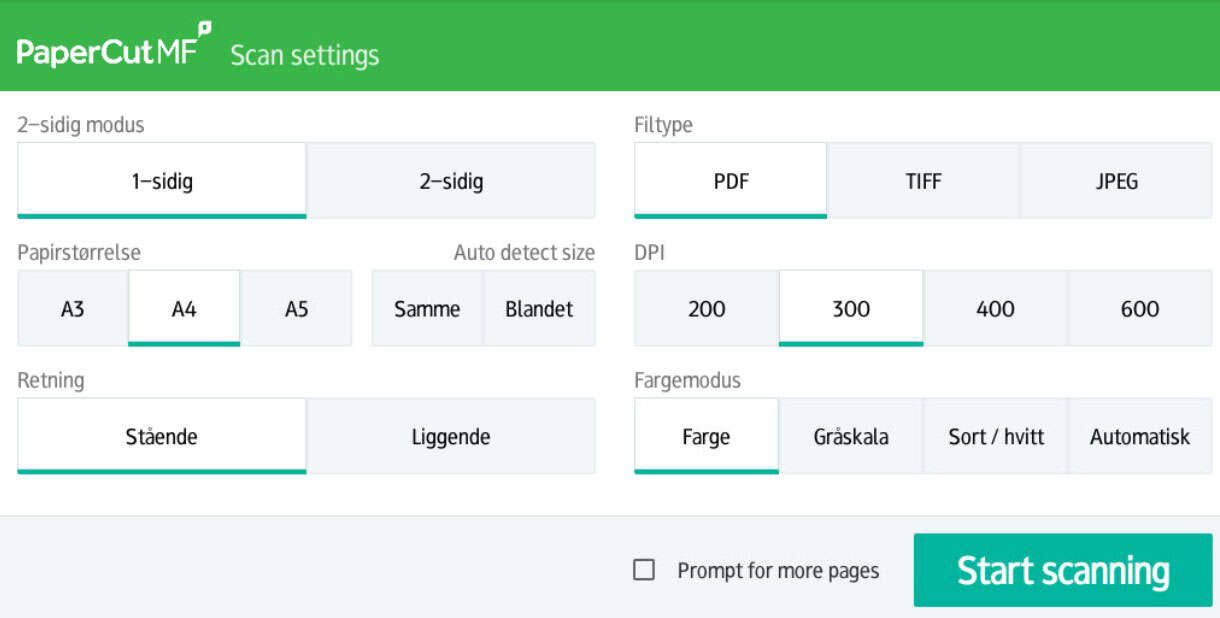
Finish with 'Start".
4. Scan multiple documents into the same file
If you have multiple documents to scan into a single file, you can do so.
Make sure that 'Build job / New document' is checked when scanning.
Then start by scanning the first page of the document. Once the first page has been scanned, you will be given the option to finish the job or scan more pages.
To scan more pages into the same file, select 'Scan to next page'.
5. The scanned documents can now be found in your email inbox.
6. Note: The first time you scan to OneDrive, you will receive an email from PaperCut requesting approval/authorisation. Click on 'Login to OneDrive for Business':
You will then receive another email stating that the document is ready in OneDrive. You can go directly to the document by clicking 'Go to your scan!' or in OneDrive: Apps/Scans for PaperCut MF.